
How to Get the WhatsApp Business API in 2026: Verification, Display Name and Green Tick
A step-by-step guide to getting the WhatsApp Business API in 2026, based on Meta's current documentation: Embedded Signup, phone number rules, business verification, display name review, the blue checkmark that replaced the green tick, and how long each step takes.
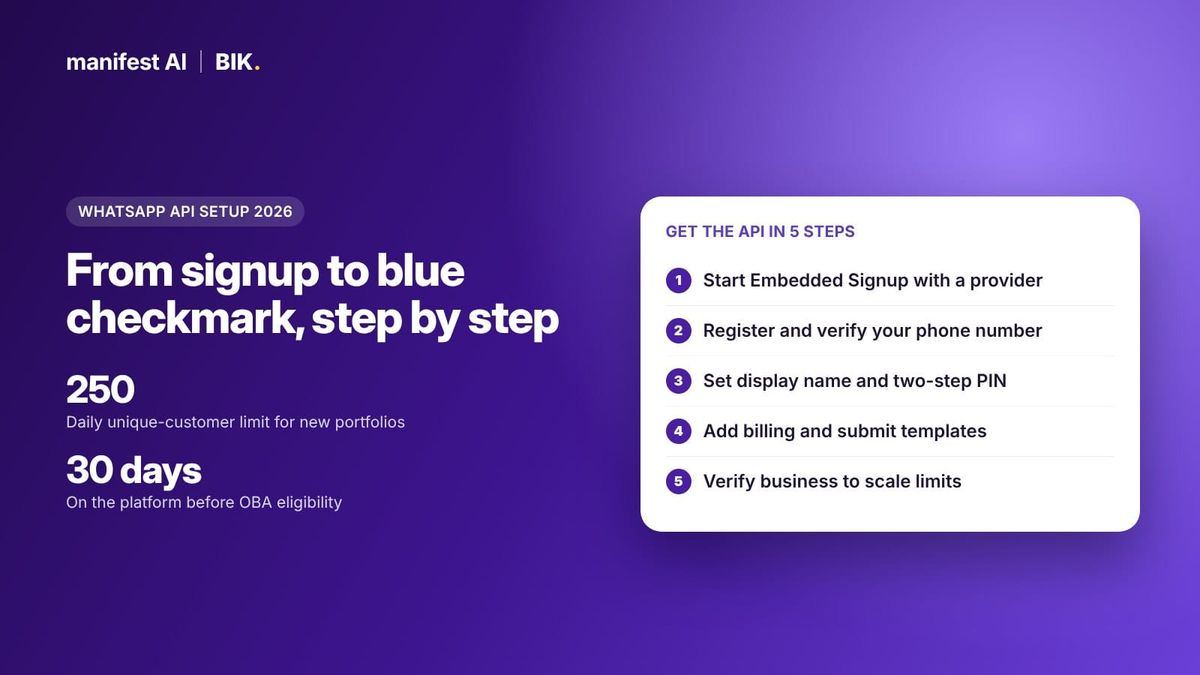
Short answer: To get the WhatsApp Business API in 2026, choose a provider (or build on Meta's Cloud API yourself), complete Meta's Embedded Signup with a Meta business portfolio, register a phone number that is not active on WhatsApp, set a display name and a two-step verification PIN, and add billing. You can start sending at a 250-customer daily limit right away. Business verification raises your limits, and an approved display name plus verification are needed for the blue checkmark, which replaced the old green tick. BIK runs this signup inside its dashboard.

Most guides on this topic still describe the 2022 process: tiers of 1,000 conversations, a green tick, and an On-Premises option. Much of that has changed. Messaging limits now apply to your whole business portfolio, the Official Business Account badge is a blue checkmark, and the On-Premises API is gone. This guide follows Meta's current developer documentation step by step and is clear about where Meta gives no fixed approval time.
What you need before you apply
| Requirement | What Meta asks for | Tip |
|---|---|---|
| Meta business portfolio | An existing or new portfolio, selected or created during signup | Use the portfolio that will hold your brand's ads and catalogue, and make sure you are an admin |
| Phone number | A number you own, with country and area code, able to receive an SMS or voice call; short codes are not supported | Toll-free numbers work only behind an IVR that can route the registration call to a person |
| Number not on WhatsApp | Numbers active on WhatsApp Messenger or the Business app must be deleted first, unless you use coexistence | Back up chats before deleting; history does not move to the API |
| Display name | A name entered during signup, reviewed by Meta | Match the brand name on your website and business documents |
| Two-step verification PIN | A six-digit PIN set when you register the number | Store it safely; you need it to change the PIN or move the number |
| Billing | A Solution Partner's credit line, or your own payment method with a Tech Provider or direct | You cannot send messages until billing is set up |
| Policy compliance | Your business and products must follow WhatsApp's Business and Commerce policies | Restricted categories can be blocked from the platform |
Setting up WhatsApp for your store? Manifest AI and BIK turn WhatsApp conversations into orders, with AI agents that answer questions, recommend products and recover carts.
How to get the WhatsApp Business API: step by step
- Pick your route. Either build on Cloud API directly through a Meta developer app, or sign up with a Solution Partner or Tech Provider. If you are unsure, our explainer on what a WhatsApp BSP is compares both.
- Start Embedded Signup. In the provider's dashboard, start the WhatsApp connection. You log in with your Facebook or Meta business credentials, accept Meta's terms and grant the provider's app access to your WhatsApp assets.
- Select or create your business portfolio and WhatsApp Business Account (WABA). The WABA is the container for your numbers and templates. It belongs to your portfolio, not to the provider.
- Add and verify your phone number. Enter the number and confirm it with a code sent by SMS or voice call. If you see an error, the number is usually still active on a WhatsApp app.
- Enter your display name. This is the name customers see on your profile. It is reviewed by Meta, as explained below.
- Set two-step verification. Meta requires a PIN when a number is registered for Cloud API. Many providers set this during signup.
- Set up billing. A Solution Partner shares its credit line with your WABA. With a Tech Provider or direct setup, you add a card or other payment method in Meta Business Suite.
- Create and submit message templates. Templates for marketing, utility or authentication must be approved by Meta before you can send them outside a 24-hour customer service window.
- Verify your business. Optional on day one, but it is the most common way to lift your messaging limit and number cap.
- Scale your messaging limit. Send high-quality messages consistently and Meta raises the limit automatically.
Meta business verification: what it unlocks
Business verification confirms to Meta that your business is a real legal entity and that the person applying can act for it. You submit business details and documents through Meta Business Suite. You do not need it to start messaging, but it unlocks several things:
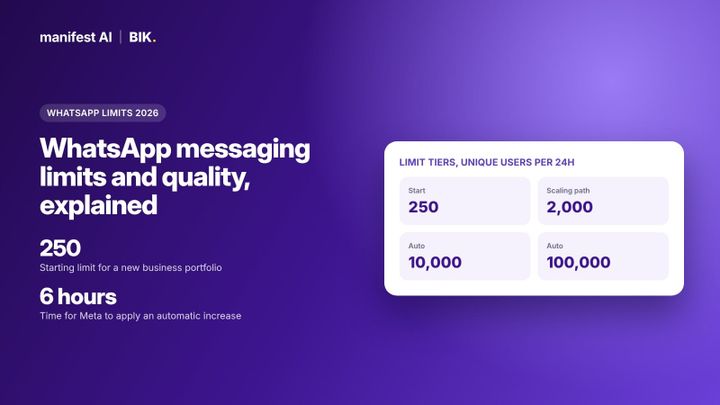
- A higher messaging limit. New business portfolios start at 250 unique customers per rolling 24 hours outside a service window. Meta lists three paths to 2,000: verify your business, have your partner verify it, or deliver 2,000 messages to unique numbers outside service windows within 30 days using high-quality templates.
- More phone numbers. Portfolios start with 2 registered numbers. Meta raises the cap to 20 when the business becomes verified or reaches a 2,000 limit.
- Blue checkmark eligibility. Business verification is one of the requirements for Official Business Account status.
Partner-led business verification
Meta also lets some Solution Partners submit verification documents for a client. This is currently limited to approved Select and Premier Solution Partners. Up to three documents per submission are accepted (PDF, JPEG or PNG, 5 MB each), and Meta's documentation says the average turnaround is 5 minutes but can take several hours. After three rejections, the client has to verify on their own through Meta's Help Center process.
After 2,000: automatic scaling
Once you reach 2,000, Meta raises the limit one level, to 10,000, then 100,000, then unlimited, within 6 hours if two conditions hold: your messages are high quality across all numbers and templates, and you used at least half of your current limit in the last 7 days. Since 7 October 2025 these limits are shared by every number in the portfolio, so one busy number can use the whole allowance.
WhatsApp display name rules
Your display name appears on your WhatsApp profile from the moment the number is registered. It shows at the top of chats and in the chat list only once it has been approved through display name verification. Points from Meta's display name documentation that catch brands out:
- Review is tied to growth. When your portfolio reaches a higher messaging limit, the display name automatically goes through verification. You are told the result by a webhook and a Meta Business Suite notification.
- Outcomes: approved, declined, or a request to keep messaging so Meta can review again later. If declined, edit the name in line with Meta's naming guidelines and resubmit or appeal.
- Change limits. You can change a display name 10 times per 30-day period.
- Re-register after approval. After a new name is approved, the number must be re-registered within 14 days or the name has to be resubmitted. Your provider normally does this for you.
- Blue checkmark numbers. If the number already has Official Business Account status, you cannot change the name through the normal flow; you contact Meta's direct support.
- Customers can override it. If a customer saves your number under another name, they see their own name for you.
Meta's naming guidelines sit in its Business Help Center. The safest choice is the brand name customers already know, written the way it appears on your website. If the display name differs from your Meta business account name, it needs Meta's approval.
The WhatsApp green tick is now a blue checkmark
The "green tick" brands ask for is the Official Business Account (OBA) badge. Meta's current documentation describes OBA numbers as having a blue checkmark beside their name. There are now two different badges, and they are easy to mix up.
| Official Business Account (API) | Meta Verified for business (app) | |
|---|---|---|
| Where it applies | Numbers on the WhatsApp Business Platform | The WhatsApp Business app, bought under Tools |
| Cost | No fee listed by Meta | Paid subscription in tiers (Business Plus, Premium, Max) |
| How you get it | Request in WhatsApp Manager or by API, then Meta reviews | Subscribe and pay in the app |
| What it includes | Blue checkmark next to the business name | Verified badge, impersonation protection, prioritised support and other tools |
OBA eligibility in 2026
Meta's Official Business Accounts page lists five requirements:
- The business follows the WhatsApp Business Messaging Policy.
- The business has been registered on the WhatsApp Business Platform for at least 30 days.
- The owning business portfolio is verified through Business Verification.
- Two-step verification is enabled on the phone number.
- The display name is approved.
OBA is not granted to employees of a business, test accounts or WhatsApp Business app numbers. Meta's older Business Accounts page also made notability a factor, meaning coverage in well-known news publications that is not paid or promotional. The newer page does not list it, but in practice well-known brands with independent press coverage are more likely to be approved, so prepare a few links.
To request it, open WhatsApp Manager, select the phone number, make sure two-step verification is on, and submit the request under the number's Profile tab. If you are rejected, you can submit a new request after 30 days.
See what your brand could automate. Our team builds the agents for you, and most brands are live in about 2 weeks.
How long does WhatsApp API approval take?
There is no single approval. Each step has its own timing, and Meta gives a fixed time for only some of them.
| Step | What Meta's documentation says |
|---|---|
| Embedded Signup and number registration | Done in one sitting; the verification code "may take a few minutes" to arrive |
| Freeing a number from the WhatsApp app | Up to 3 minutes after deleting the app account |
| Partner-led business verification | Average 5 minutes, can take several hours |
| Self-serve business verification | No fixed time published |
| Display name review | No fixed time; triggered when you reach a higher messaging limit |
| Messaging limit increase after 2,000 | Within 6 hours of meeting the criteria |
| Official Business Account | No fixed time; notification when decided; reapply after 30 days if denied |
In practice a brand can be live and sending utility messages such as order updates the same day. The parts that take longer are business verification, growing the messaging limit and the blue checkmark.
How BIK handles WhatsApp API onboarding
BIK is a Meta Business Solution Provider, and its onboarding follows Meta's Embedded Signup flow inside the BIK dashboard:
- Click Connect WhatsApp on the BIK home dashboard and choose New WhatsApp number.
- Log in with the Facebook account that is an admin of your business portfolio and grant the permissions.
- Set the display name. If it differs from your Meta business account name, Meta will need to approve it.
- Verify the number by text message, or by phone call if the SMS does not arrive. If the number is still on a WhatsApp app, delete that account, wait 3 minutes and try again.
- Return to BIK and refresh. Two-step verification is set up through BIK's signup flow.
If you already use the API with another provider, BIK's onboarding team handles the migration instead, and it is included at no extra cost. Your growth manager can also help you apply for the blue checkmark once you meet Meta's criteria, and every client gets a dedicated WhatsApp group with the BIK team for questions during setup.
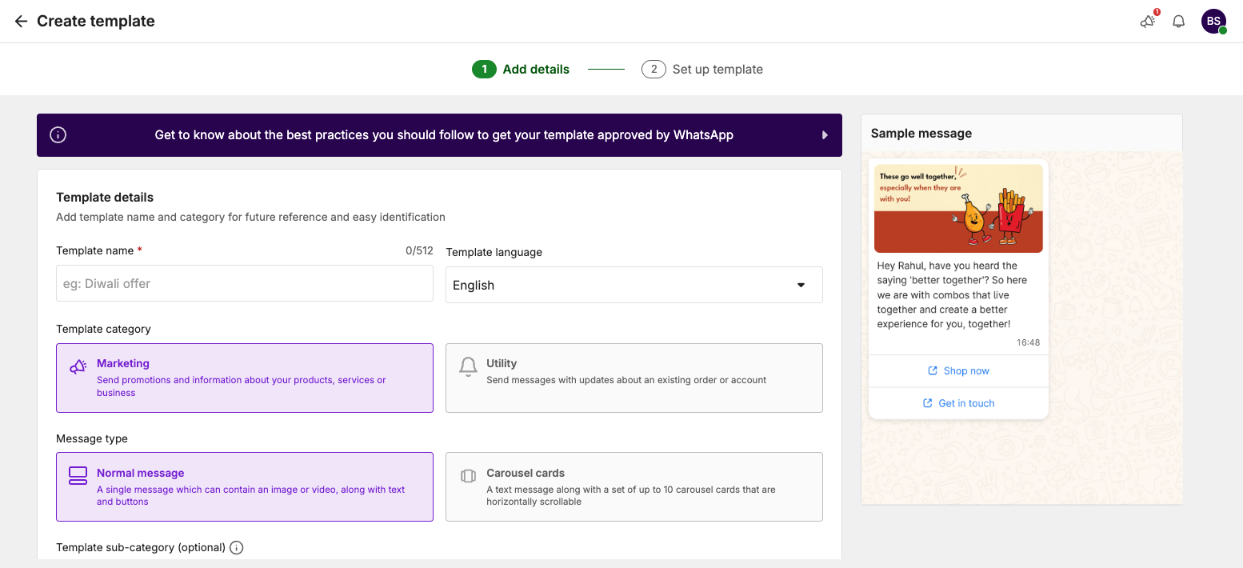
After signup, BIK's WhatsApp Warm-up guide helps you scale the messaging limit while keeping your quality rating high, and its template library gives you ready templates for welcome messages, abandoned checkouts and CSAT. These are part of the BIK platform, a subscription priced on contacts from $250 per month, with messages billed at Meta's rate card with no markup. Brands that only need WhatsApp API access can use BIK's BSP (API-only) offering instead: $10 per WhatsApp number per month, $0 platform fee, no markup. The platform is not included in the $10.
When BIK is not the right fit
- You only need a free inbox for a handful of chats. The WhatsApp Business app is enough, and Meta Verified for business gives you a badge there.
- You are building your own messaging software. Go direct on Cloud API or use a developer-focused provider.
- Your business is in a category WhatsApp restricts. No provider can get around Meta's Commerce Policy, so check it before you apply anywhere.
80%+ of tickets automated, or your money back. That's the Manifest AI guarantee, written into your contract.
FAQ
How do I apply for the WhatsApp Business API?
Sign up through a Meta Solution Partner or Tech Provider, or create a Meta developer app with the WhatsApp product. Either way you go through Embedded Signup: log in, pick a business portfolio, register a phone number, set a display name and add billing.
Do I need business verification to use the WhatsApp API?
Not to start. New portfolios can message up to 250 unique customers a day outside a service window without it. Verification is one of the paths to a 2,000 limit, raises your number cap from 2 to 20, and is required for the blue checkmark.
How do I get the WhatsApp green tick in 2026?
The green tick is now the Official Business Account blue checkmark. You need a verified business portfolio, an approved display name, two-step verification, at least 30 days on the platform and policy compliance, then you request it in WhatsApp Manager.
How long does WhatsApp Business API approval take?
Signup and number registration take minutes. Meta publishes no fixed time for self-serve business verification, display name review or the blue checkmark, while partner-led verification averages 5 minutes according to Meta.
Can I use my existing WhatsApp number for the API?
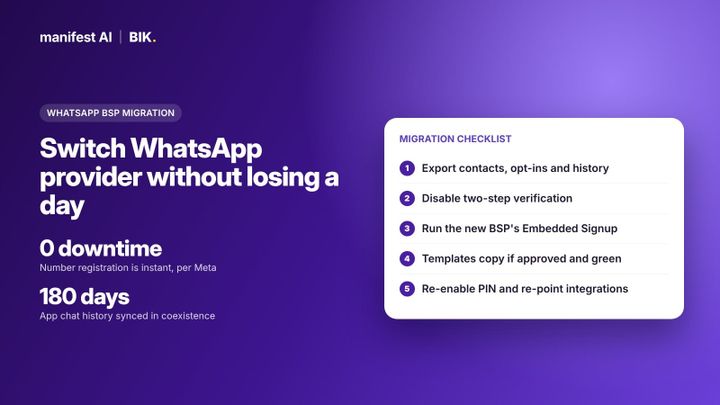
Yes. Either delete the number from the WhatsApp app first, which loses your chat history, or onboard it through coexistence with a supporting provider so you can keep using the app as well.
Why was my WhatsApp display name rejected?
Meta declines names that do not follow its naming guidelines, which are in the Business Help Center. Edit the name so it clearly matches your brand, then resubmit or appeal. You can change it up to 10 times in 30 days.
Is the WhatsApp Business API free to get?
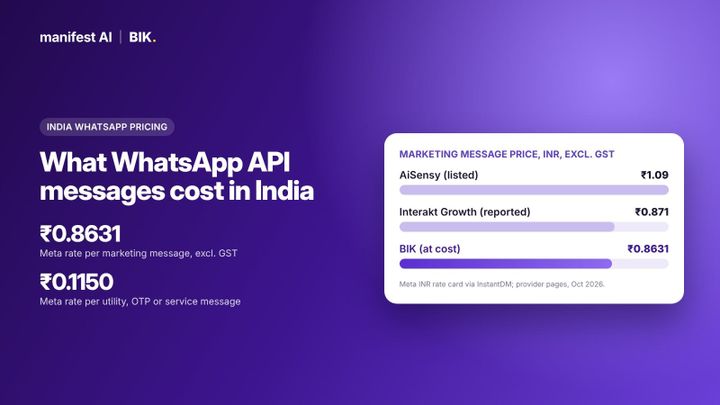
Meta charges no fee to get access, but you pay per delivered template message, and from 1 October 2026 for service messages above 1,000 free per number per month. Providers add their own fees. BIK's BSP (API-only) offering adds no markup on messages and charges $10 per number per month with a $0 platform fee; BIK's marketing and retention platform is a separate subscription from $250 per month, priced on contacts.
Sources
- Meta: Embedded Signup overview
- Meta: Business phone numbers
- Meta: Display names
- Meta: Official Business Accounts
- Meta: WhatsApp Business Accounts (older reference, notability criteria)
- Meta: Messaging limits
- Meta: Messaging limit changes from 7 October 2025
- Meta: Partner-led business verification
- Meta: Migrate an existing WhatsApp number to a business account
- WhatsApp Business: Meta Verified for business
- BIK Help: WhatsApp onboarding
Related reading: What is a WhatsApp BSP?, How to migrate your WhatsApp number to a new BSP, Top 10 WhatsApp Business API providers in 2026 and WhatsApp service message pricing from October 2026.